Vidalytics Updates for October 2026: AI Thumbnails, Dynamic CTAs & Easier Billing

October’s updates help you get more people to press play, keep your campaign tracking connected after the click, and handle a billing change in about ten seconds. Here’s what’s new and how to put each one to work.
Create a Thumbnail With AI, Then Test It Against Your Current One
When your video is click-to-play, the thumbnail is what earns the click. But making a good one usually means scrubbing through your video for a decent frame, taking a screenshot, and hoping it works.
The AI Thumbnail Lab gives you a new thumbnail in about a minute. Start with frames from your own video or images you upload (up to three references), pick a style like Cinematic, Authority, or Vlog, and add a prompt or a short headline if you want one. Vidalytics best practices are on by default, so the result is steered toward what tends to work on video thumbnails: one clear focal point, high contrast, real faces and products kept as they are, and space in the center for the play button.
Close but not quite right? Click Adjust Result and describe what to change, like “brighter background” or “tighter crop.” The AI edits that image instead of starting from scratch.
When you’re happy with it, you have two options:
- Apply it to your main, mobile, or exit thumbnail in one click.
- Run Experiment to split test it against your current thumbnail. Vidalytics sets up the experiment draft for you with traffic split 50/50, and you pick the success metric, like conversion rate or click rate.
Every thumbnail you create is saved in your Generation History, so you can go back and apply an earlier version anytime.
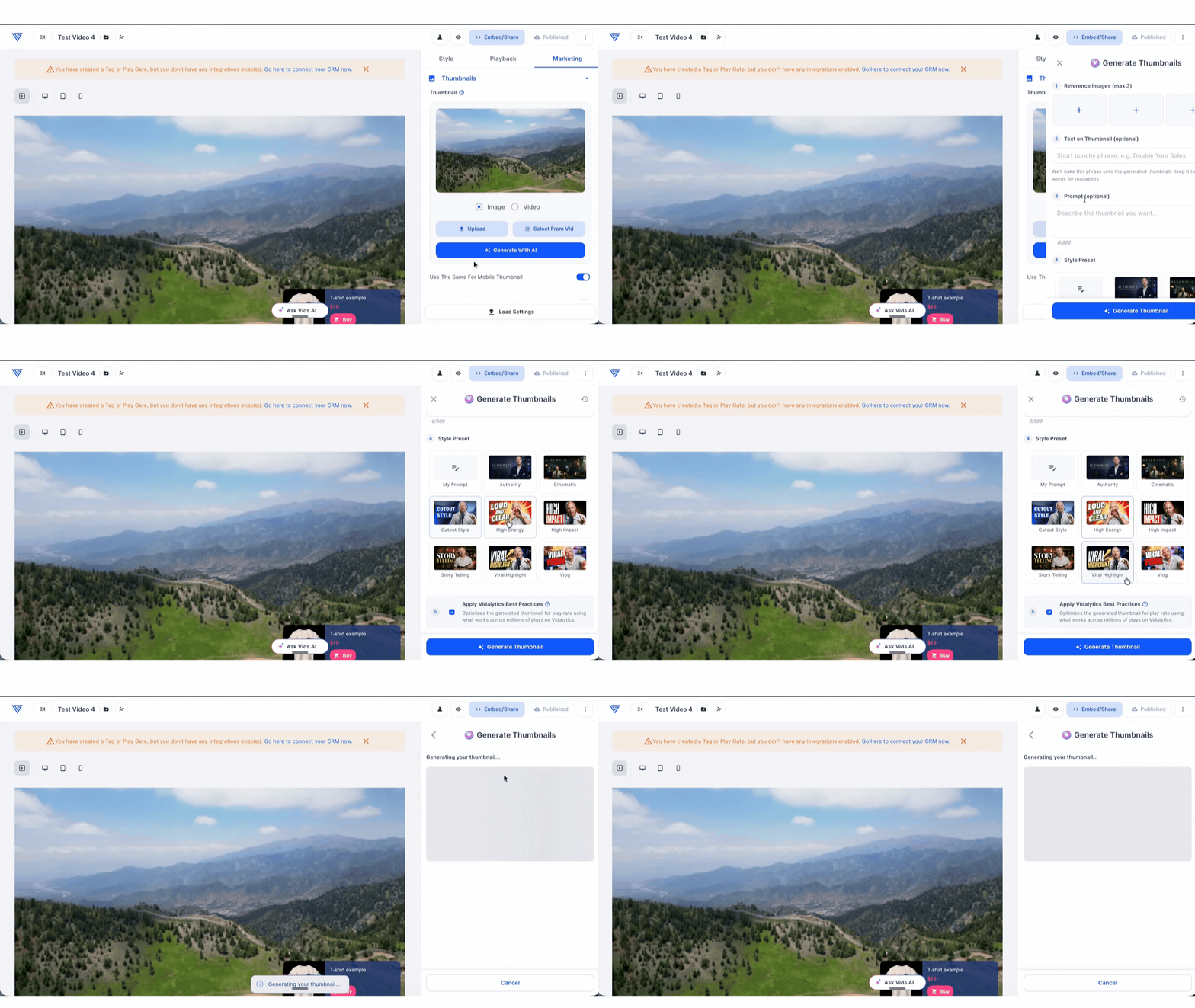
Where to find it: Vid Settings → Marketing → Thumbnails → Generate With AI
Plan: Available on Pro and above, with a monthly generation allowance. Each generation and each adjustment uses one; failed attempts don’t count. See full changelog
Keep Your Campaign Tracking Connected With Dynamic CTA Parameters
Your campaign data shouldn’t stop at the video page. When your ads send viewers there with tracking values in the URL, like a campaign ID or click ID, those values can now follow the viewer all the way to your offer.
In your CTA settings, add the parameter names you want to pass (up to 10 per CTA). When a viewer clicks, Vidalytics checks the video page URL and adds any matching values to your CTA link. Your UTMs still carry over automatically, so there’s no need to add them to the list.
Here’s what that looks like. Say your CTA links to https://example.com/offer, you’ve added campaign_id to your parameters, and a viewer lands on https://yourwebsite.com/video?utm_source=fb&campaign_id=123. When they click, they land on https://example.com/offer?utm_source=fb&campaign_id=123.
That means you can use one CTA link across all your campaigns instead of hardcoding a different URL for each one, and your attribution stays connected from ad to offer.
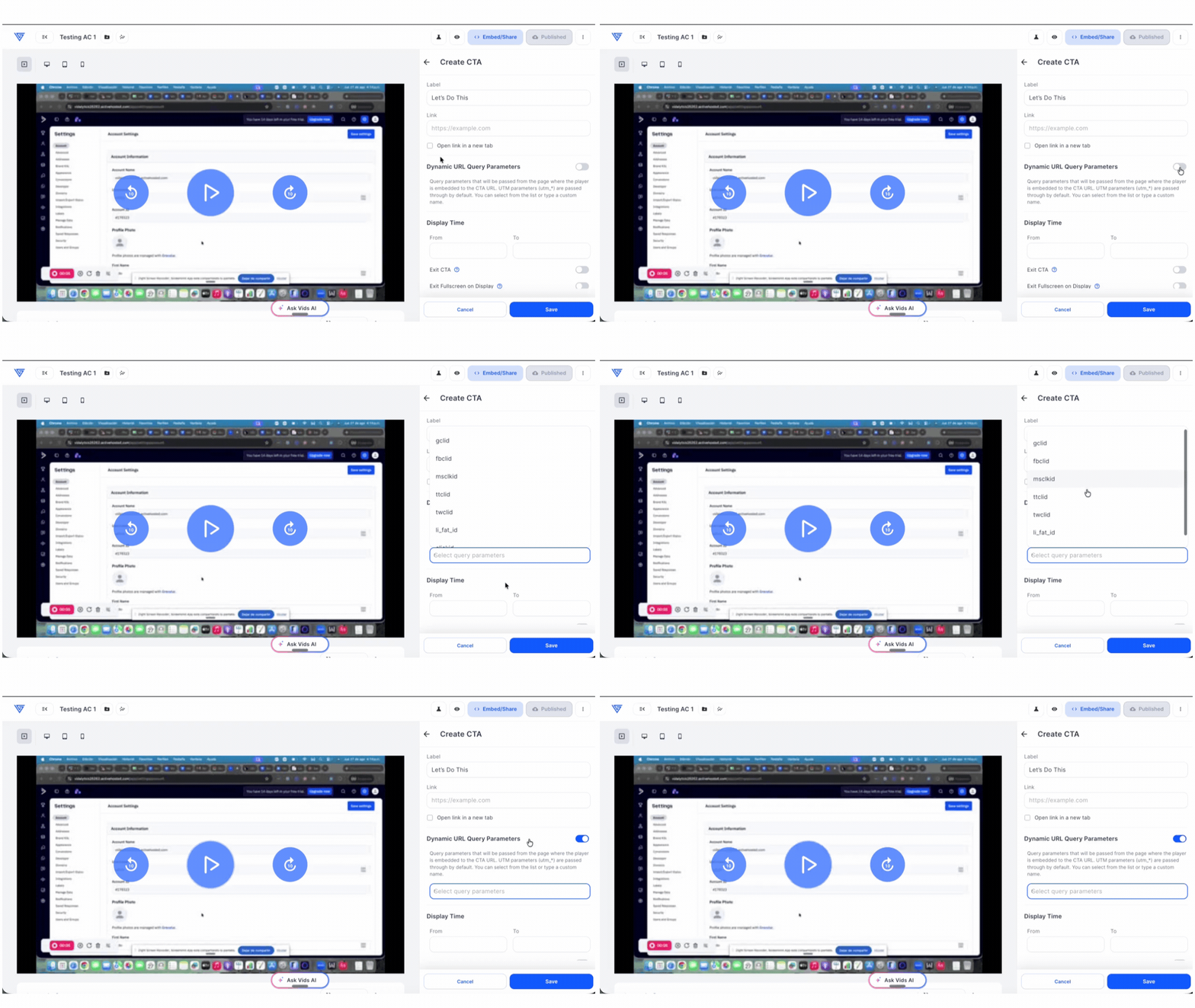
Where to find it: Vid Settings → CTA → Dynamic URL Query Parameters
Plan: Regular CTAs only. See full changelog
Update Your Invoice Details Instantly
Changed your company name, moved offices, or need your VAT or tax ID on your invoices? You can now update your company name, address, and VAT/Tax ID right in your account settings. Your changes save instantly and apply to every invoice going forward.
Where to find it: Account Settings → My Account → Edit Billing Details
Plan: All plans, including trial (with payment method). See full changelog
We’re already working on next month’s updates. If part of your workflow feels slower than it should, tell us and it might end up on the list.
Ready to Increase Your Conversions?